Power Apps in 2026: The Old Way vs the AI Way — A Step-by-Step Guide to Building Apps Properly
Power Apps went from dragging controls onto a canvas to describing a business problem and letting AI agents build the entire solution. Here's how both approaches work — and how to use the new one properly.
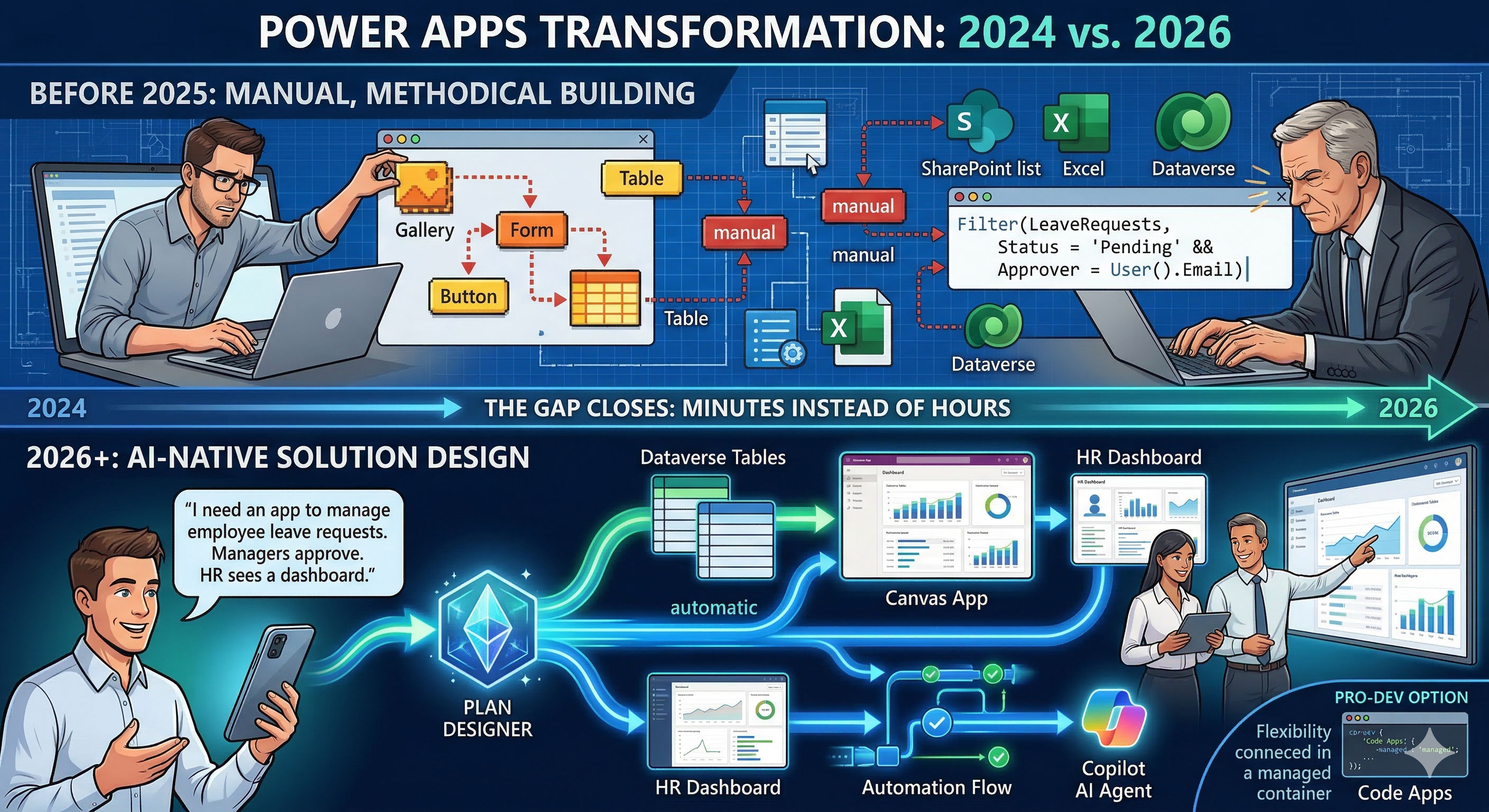
Two years ago, building a Power App meant dragging controls onto a canvas, writing Power Fx formulas by hand, and manually configuring every screen, table, and data connection. Today, you describe your business problem in one sentence and a team of AI agents builds the entire solution for you — apps, database tables, automation flows, and AI agents included. Same platform, completely different experience.
Microsoft Power Apps has undergone the most dramatic transformation of any low-code platform in the market. If you learned Power Apps before 2025, much of what you know still applies — but the way you start building, iterate, and ship has fundamentally changed. And if you're evaluating Power Apps for the first time in 2026, you're walking into a tool that barely resembles what existed two years ago.
I've built workflows on Power Platform for enterprise clients — approval systems, data capture apps, process automation layered on top of SharePoint and Dynamics 365. The old way worked. The new way is faster, smarter, and accessible to people who previously couldn't build at all.
This post walks through both approaches side by side — how Power Apps worked before AI, how it works now with Copilot and the Plan Designer, and a step-by-step guide to building apps properly using the new capabilities.
The Old Way: Manual, Methodical, and Slow
Before Copilot, building a Power App followed a predictable (and often tedious) sequence. Here's what the process looked like:
Step 1: Define your data source manually. You'd start by creating a SharePoint list, an Excel table, or a Dataverse table — manually defining every column, data type, and relationship. For a simple leave request app, that meant creating columns for employee name, leave type, start date, end date, status, approver, and comments. Each column configured one by one.
Step 2: Create a blank canvas or model-driven app. You'd open Power Apps Studio and choose between a canvas app (pixel-level control, custom layout) or a model-driven app (data-first, auto-generated forms). Canvas apps gave you design freedom but required more manual work. Model-driven apps were faster to scaffold but less flexible visually.
Step 3: Design every screen manually. For a canvas app, you'd build each screen from scratch — a browse screen to list records, an edit screen for data entry, a detail screen to view individual records. Each screen required manually adding galleries, forms, labels, buttons, and icons. You'd arrange them on the canvas, set their properties, and connect them to your data source.
Step 4: Write Power Fx formulas. This was the steep learning curve. Every interaction — filtering a gallery, navigating between screens, validating form inputs, submitting data — required Power Fx formulas. Something as simple as filtering a list by status required you to write:
Filter(LeaveRequests, Status = "Pending" && Approver = User().Email)
Not difficult for someone who knows the syntax. But a genuine barrier for business users who just wanted a working app.
Step 5: Build automation separately in Power Automate. If your app needed approval workflows, email notifications, or conditional logic triggered by data changes, you'd leave Power Apps entirely, open Power Automate, and build flows from scratch. Then you'd connect those flows back to your app — a manual integration step that required understanding both tools.
Step 6: Test, fix, publish. Testing was manual. You'd click through every screen, try every button, submit test data, and verify that your flows triggered correctly. Fixing issues meant going back into the formula bar, adjusting properties, and re-testing. Publishing required saving, publishing the app, and sharing it with users via a link or embedding it in Teams.
Total time for a basic leave request app: 4-8 hours for an experienced maker. Days for a beginner.
The old way wasn't broken. Millions of useful apps were built this way. But it was slow, required technical knowledge that most business users didn't have, and the gap between "I have an idea for an app" and "I have a working app" was measured in hours at best and weeks at worst.
The New Way: Copilot, Plan Designer, and AI Agents
The 2025 release wave 2 transformed Power Apps from a manual builder into an AI-native development platform. Here's what changed — and how to use it properly.
Plan Designer — From Business Problem to Complete Solution
Plan Designer is the headline feature and represents the biggest shift in how Power Apps works. Instead of starting with a blank canvas and building manually, you start with a business problem described in natural language.
Step 1: Describe your business problem.
Open Power Apps and navigate to Plan Designer. Type a description of what you need:
"I need an app to manage employee leave requests. Employees should be able to submit leave with type, dates, and reason. Managers should approve or reject requests. HR should see a dashboard of all leave across the company. Everyone should get email notifications when requests are submitted, approved, or rejected."
That's it. One paragraph. No table design, no screen layouts, no formula writing.
Step 2: Review the AI-generated plan.
Plan Designer doesn't just create an app — it generates an entire Power Platform solution. This includes Dataverse tables with appropriate columns, relationships, and sample data. It proposes user roles (Employee, Manager, HR Admin). It generates canvas app screens or model-driven app experiences. It suggests Power Automate flows for notifications and approvals. And with the latest updates, it even proposes Copilot Studio agents that can handle common tasks autonomously.
You review this plan in a visual interface. Each component — tables, apps, flows, agents — is displayed for you to inspect, modify, or remove before anything gets built.
Step 3: Refine through conversation.
This is where it gets powerful. Instead of manually adjusting table schemas or screen layouts, you talk to Copilot:
"Add a column for remaining leave balance. Make the manager approval screen show the employee's leave history. Add a calendar view to the HR dashboard."
Each instruction modifies the plan. Copilot makes the changes and shows you the updated design. You iterate through conversation until the plan matches your requirements.
Step 4: Generate the solution.
Click generate, and Plan Designer creates the complete solution — tables populated with sample data, screens built and connected, flows configured, and agents set up. What used to take hours of manual work happens in minutes.
Step 5: Customise in Power Apps Studio.
The generated app isn't locked. You open it in Power Apps Studio and have full control to adjust layouts, add custom logic, modify formulas, or change the design. The AI gives you a strong starting point — you refine the details.
Copilot in Power Apps Studio — AI-Assisted Building
Even when you're working in the traditional Power Apps Studio (editing screens and controls directly), Copilot is now embedded throughout the experience.
Natural language to app creation. From the home screen, select "Start with data" and describe what you want to track. Copilot generates Dataverse tables and a functional canvas app automatically. You can say "Create a table to track customer complaints with priority, status, assigned agent, and resolution date" and get a complete table with appropriate column types.
Formula assistance. Instead of memorising Power Fx syntax, you describe what you want in plain language. "Filter this gallery to show only high-priority items assigned to the current user" — Copilot writes the formula for you. This dramatically lowers the learning curve for business users.
Screen generation. Describe a new screen you need — "Add a dashboard screen showing total complaints by status as a chart, with a filter for date range" — and Copilot generates it with the appropriate controls, data connections, and layout.
In-app Copilot for users. Your finished app can include Copilot chat for end users. They can ask questions about their data in natural language — "Show me all pending leave requests from last month" — and get filtered results without navigating the app manually. Microsoft recently announced that Microsoft 365 Copilot chat will be available directly inside Power Apps in model-driven apps, with canvas app support coming in April 2026. This is a genuine usability leap for complex apps with lots of data.
AI Agents in Power Apps — The New Frontier
The most recent updates (February-March 2026) introduce AI agents directly into Power Apps:
Built-in extensible agents. Every Power App now comes with a set of built-in agents that help users with common tasks — data entry, exploration, summarisation. These agents are governable (admins control what they can do), observable (you can see what they're doing), and extensible (you can modify their behaviour).
Power Apps MCP Server. Now in public preview, the Model Context Protocol server lets AI agents interact with your Power Apps as tools. An agent can parse unstructured data, fill out forms, create records, and flag items for human review — all within the app's governance framework.
Agent Feed. A shared workspace within the app where humans can supervise agent activity, review agent-created records side by side with the original data, approve or reject agent actions, and navigate directly to relevant records. This is human-agent collaboration built directly into the application layer.
Create agents from existing apps. You can now select an existing Power App and generate a Copilot Studio agent from it. The agent inherits the app's data connections and business logic, and can execute tasks autonomously — with human oversight when needed.
Code Apps — For Pro Developers
Also newly GA (generally available) in 2026: Code Apps in Power Apps. Professional developers can now build with React, Vue, or any popular web framework in their preferred IDE, and deploy directly to Power Apps. The app becomes a governed Power Platform asset — with IT visibility, security controls, and lifecycle management — while developers retain full code-first flexibility.
This bridges the gap between citizen developers using Copilot and professional developers who need complete control. Both produce Power Platform assets that IT can manage uniformly.
Step-by-Step: Building a Proper App in 2026
Here's the approach I'd recommend for building any Power App in 2026, combining old fundamentals with new AI capabilities:
Step 1: Start with Plan Designer. Describe your business problem clearly. Include the user roles, the core workflow, and the key data you need to track. Let AI generate the initial plan. Review the proposed tables, relationships, screens, and flows.
Step 2: Refine the data model before generating. This is where old-school Power Apps discipline still matters. Check the Dataverse tables Plan Designer created. Are the column types correct? Are the relationships right? Is there a primary key that makes sense? Fix the data model in the plan phase — it's much easier to adjust a plan than to restructure a generated app.
Step 3: Generate and inspect. Let Plan Designer build the solution. Then open each component — the app, the flows, the tables — and inspect them. Don't assume the AI got everything right. Check that the approval flow routes to the correct role. Verify that the gallery filters work as expected. Test the forms with sample data.
Step 4: Customise with Copilot assistance. Use the embedded Copilot for refinements. Need a new calculated column? Ask Copilot to write the formula. Want to change the layout of a screen? Describe the change in natural language. Need a conditional visibility rule on a button? Tell Copilot what should happen and when.
Step 5: Add automation intentionally. Review the Power Automate flows that Plan Designer suggested. Some will be exactly right. Others will need adjustment. For complex approval chains — multi-level approvals with delegation, escalation, and SLA tracking — you'll likely need to build or modify flows manually in Power Automate. The AI gives you a starting point, not the final version.
Step 6: Configure agents thoughtfully. If your app includes AI agents, define clear boundaries for what they can do autonomously versus what requires human approval. Use the Agent Feed to monitor agent actions during the initial rollout. Start with narrow agent capabilities and expand as you build confidence in their reliability.
Step 7: Test with real users, not just sample data. This hasn't changed from the old way — and it remains the most important step. Put the app in front of three to five actual users. Watch them use it. Note where they get confused, what they try to do that doesn't work, and what they ask for. Then iterate.
Step 8: Publish within your governance framework. Deploy to a managed environment. Set up DLP policies. Configure access controls. Use the Power Platform Admin Centre to monitor usage and performance. The AI built the app — but governance is still your responsibility.
What Changed and What Didn't
Changed: How you start (natural language instead of blank canvas), how you iterate (conversation instead of formula editing), how fast you go (minutes instead of hours for the first version), and who can build (business users, not just technical makers).
Didn't change: The importance of getting the data model right. The need for proper testing with real users. The requirement for governance, security, and lifecycle management. The reality that complex business logic still needs human review and refinement. And the truth that AI gives you a great first draft — but shipping a production app still requires discipline. Gartner predicts that by 2026, 80% of low-code platform users will come from outside formal IT departments — which makes governance even more critical as the builder population expands.
The Bottom Line
Power Apps in 2026 is a fundamentally different tool than it was in 2023. Plan Designer, Copilot, AI agents, MCP integration, and Code Apps have transformed it from a manual low-code builder into an AI-native platform where you describe problems and get solutions.
But the best Power Apps makers in 2026 aren't the ones who rely entirely on AI. They're the ones who use AI to skip the tedious work — table creation, screen scaffolding, formula writing — and invest their time in the things AI still can't do well: understanding the actual business problem, designing the right data model, testing with real users, and building governance that scales.
Let AI handle the how. You focus on the what and the why. That's how Power Apps works best in 2026.